



After your website has been reviewed and accepted for ad monetization by our team, it’s time to start configuring the desired ad zones. An ad zone defines where ads will appear on your website.
Each zone has its own settings and ad code snippet, allowing you to control how and where ads are displayed.
How to create a Mondiad ad zone?
1. Log in to your Mondiad publisher account.
2. Go to the “Websites” section in your dashboard.

3. Select the website you wish to monetize.
4. Click the “Add New Zone” button.
You can add up to 10 Mondiad ad zones per website.
5. Choose your preferred ad format from the available formats.
NOTE: Besides websites, you can also monetize your apps with Mondiad in-app ad monetization!
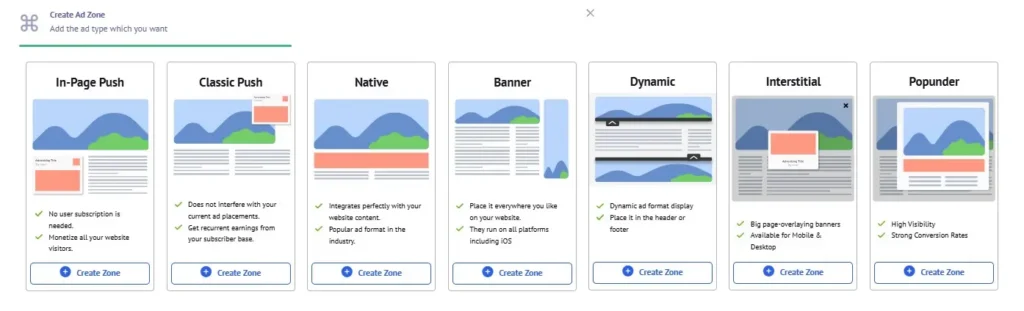
6. Configure the settings according to your needs. Each ad zone has its own customizable ad display parameters. (see below)
7. After the desired setup, click “Save” to generate your ad tag.
Mondiad In-Page Push Ad Zone Configuration
In-Page Push ads are notification-style ads displayed directly within a webpage. Unlike Classic Push, they do not require users to subscribe to browser notifications and can reach all visitors, regardless of their browser or operating system. They blend naturally into the page while remaining highly visible.
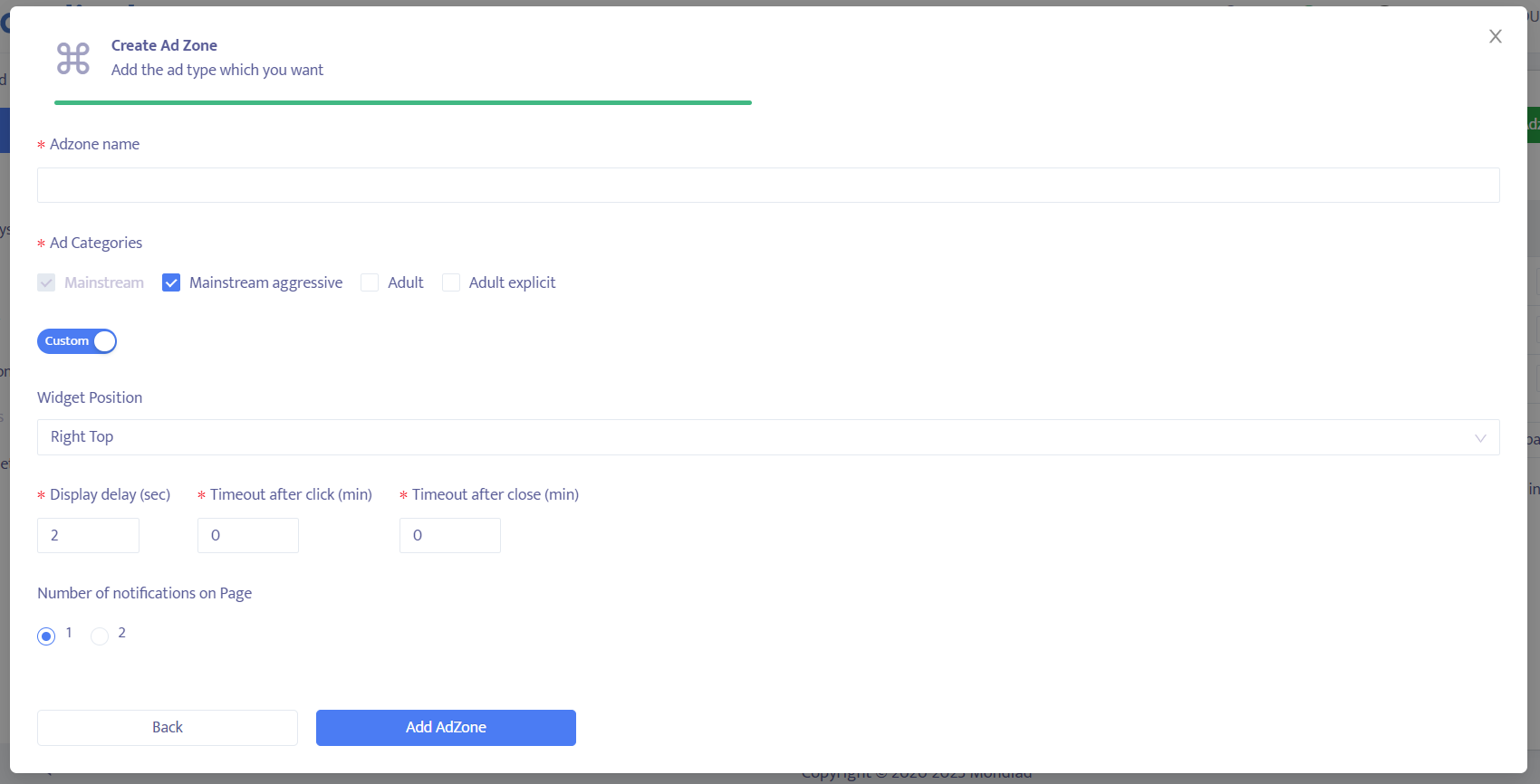
- The ad zone name; [You have no restrictions regarding the ad zone name, as this information is internal]
- Ad category: Mainstream, Mainstream Aggressive, Adult, Adult Explicit
- Widget position (the display position of the ad)
- The ad display delay. (delay time (in seconds) of the ad being displayed after the website is loaded.)
- The timeout after a click. (delay time (in minutes) for showing the next ad, after a visitor clicks on the current ad)
- The timeout after close. (delay time (in minutes) for showing the next ad, after the visitor closes the current ad(hit the X icon))
- Number of notifications on page. -> *If the number of notifications on a page is 2, an additional parameter becomes available: “Delay between notifications” is a feature available only on desktop and here you are allowed to set the delay in seconds between notifications.
Mondiad Classic Push Ad Zone Configuration
Classic Push ads are browser notifications delivered directly to users who have subscribed to receive notifications from a website. These ads appear on the user’s device even when they are not actively browsing the publisher’s website, making them an effective format for re-engagement and high visibility.
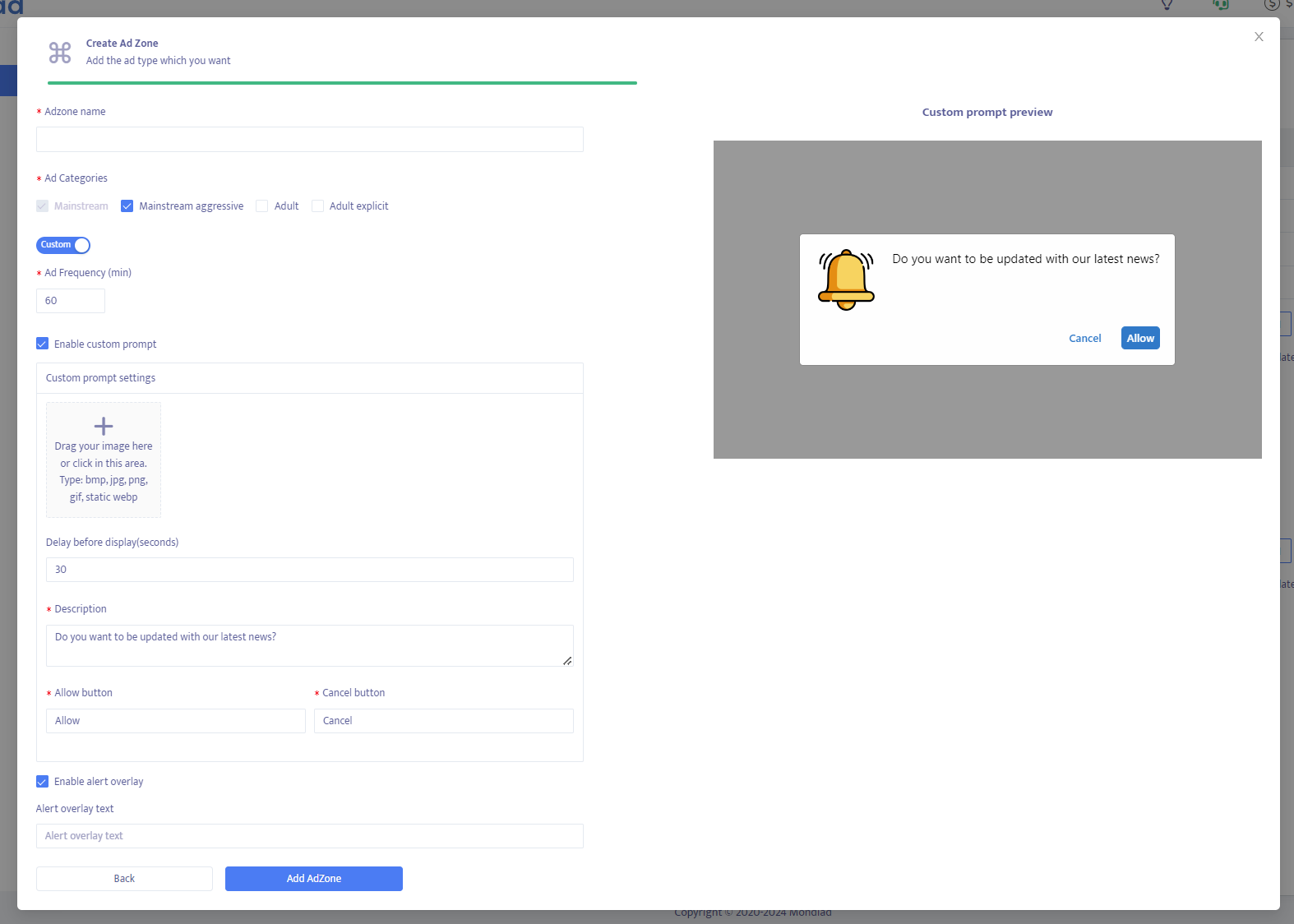
- The ad zone name; [You have no restrictions regarding the ad zone name, as this information is internal]
- Ad category: Mainstream, Mainstream Aggressive, Adult, Adult Explicit
- Delay before display(in seconds)
- Icon & Description
- Allow & Cancel buttons which you can customize as you wish.
- Alert overlay text is an optional custom text which appears in the center of the visited page, inviting the visitor to subscribe to receive ads.
Mondiad Native Ad Zone Configuration
Native ads are advertisements designed to match the appearance and style of the website’s content. They typically include an image, headline, description, and call-to-action, providing a non-intrusive advertising experience that integrates seamlessly with the surrounding content.
💡📖 Native Ad Revenue Explained: Your Full Monetization Guide
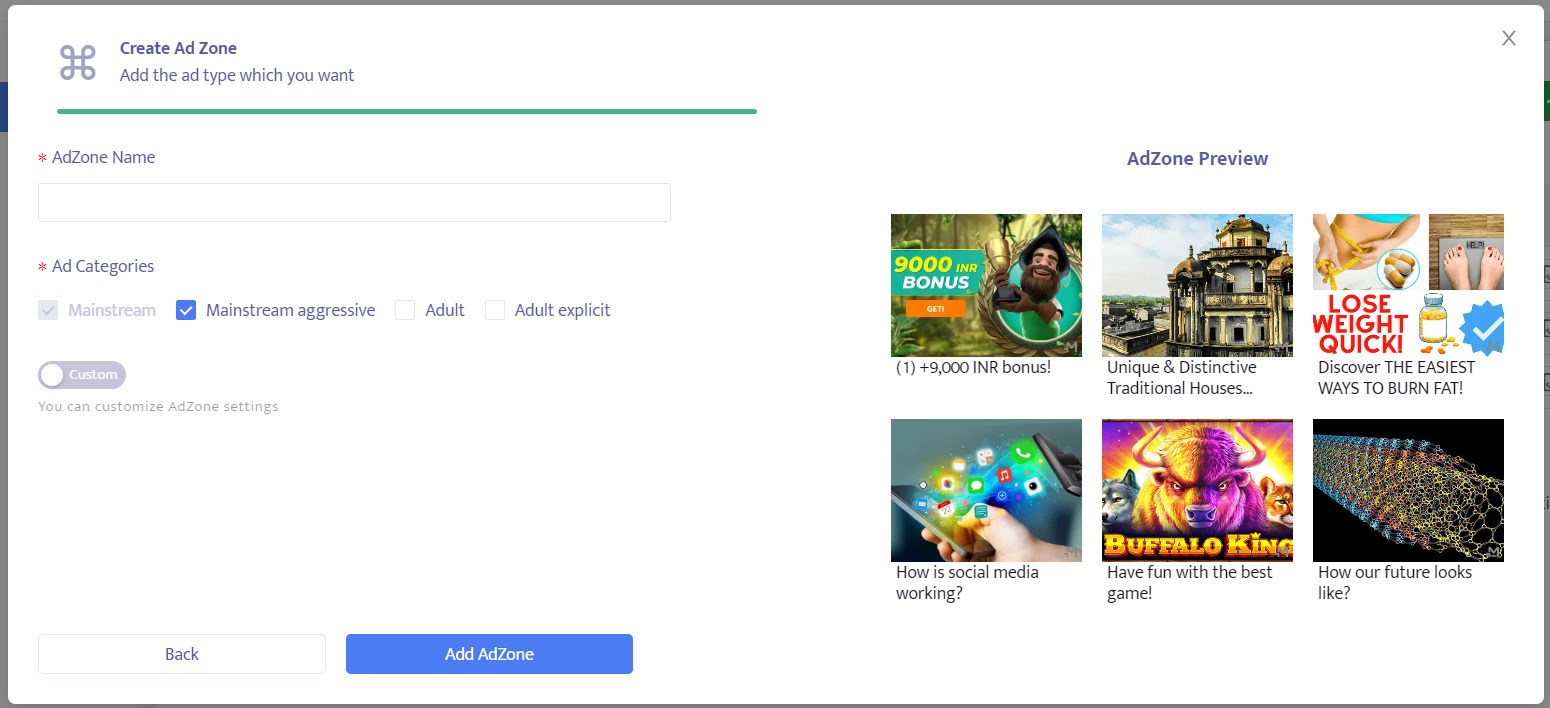
- The ad zone name; [You have no restrictions regarding the ad zone name, as this information is internal]
- Ad category: Mainstream, Mainstream Aggressive, Adult, Adult Explicit
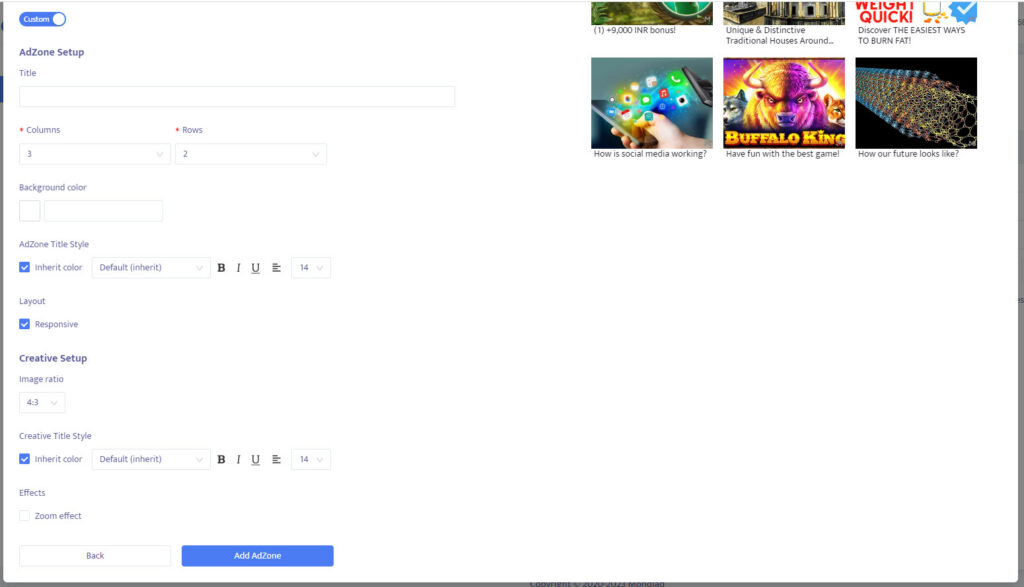
- Columns: 1 to 5
- Rows: 1 to 5
- Background color: open the interactive color palette or insert the exact HEX code desired. (ex: #22194D)
- Ad zone title style: you can play with a few fonts, sizes, formatting styles like bold or italic and centring options.
- Layout: Responsive or Fixed(insert width)
-> Creative Setup:
- Image Ratio
- Creative title style: you can play with a few fonts, sizes, formatting styles like bold or italic and centring options.
- Effects: Zoom effect
Mondiad Banner Ad Zone Configuration
A banner ad is a graphical advertisement displayed within a webpage or mobile app. It typically consists of an image, animation, or HTML5 creative that appears in designated ad placements and directs users to an advertiser’s landing page when clicked.
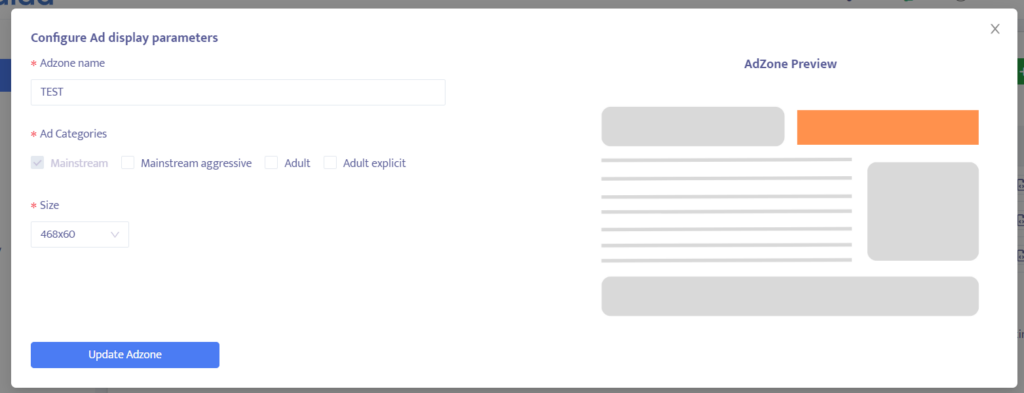
- The ad zone name; [You have no restrictions regarding the ad zone name, as this information is internal]
- Ad category: Mainstream, Mainstream Aggressive, Adult, Adult Explicit
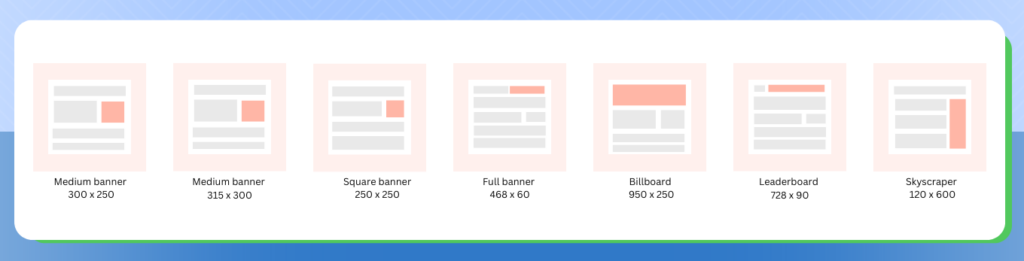
- Banner size: 300×250 – 468×60 – 250×250 – 728×90 – 120×600
- Fallback ads: You can add a second ad provider to make sure that your ad zone is always performant and filled. You will see the reports from your second provider in their network.
Mondiad Dynamic Ad Zone Configuration
Dynamic Ads are display ads that slide into view from the header or footer of a webpage as the user scrolls. Once displayed, the ad remains fixed at the top or bottom of the screen, ensuring continuous visibility while the user browses the page. The ad stays in place until the visitor closes it or leaves the page.
💡📖 Dynamic Ad Monetization: How to Turn Traffic Into Revenue
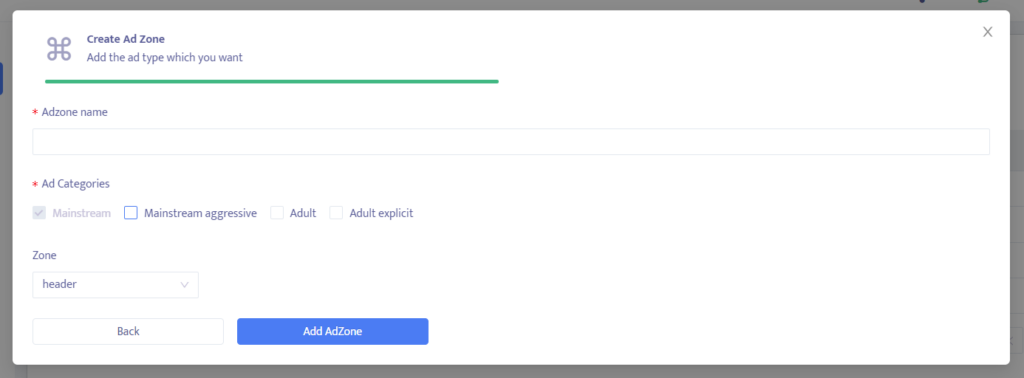
- The ad zone name; [You have no restrictions regarding the ad zone name, as this information is internal]
- Ad category: Mainstream, Mainstream Aggressive, Adult, Adult Explicit
- Zone: Header/Footer
- Type: Basic/Extended
Basic = one ad is displayed as the viewer scrolls through your page. One click closes it.
Extended = the ad zone is doubled (spreading to the middle of the mobile screen), showing 2 ads and requiring 2 clicks to close them.
Mondiad Interstitial Ad Zone Configuration
Interstitial ads are full-screen or large-format advertisements that appear during natural transitions on a website, such as between page loads or before displaying content. They capture the user’s attention by temporarily covering the page before being dismissed or closed.
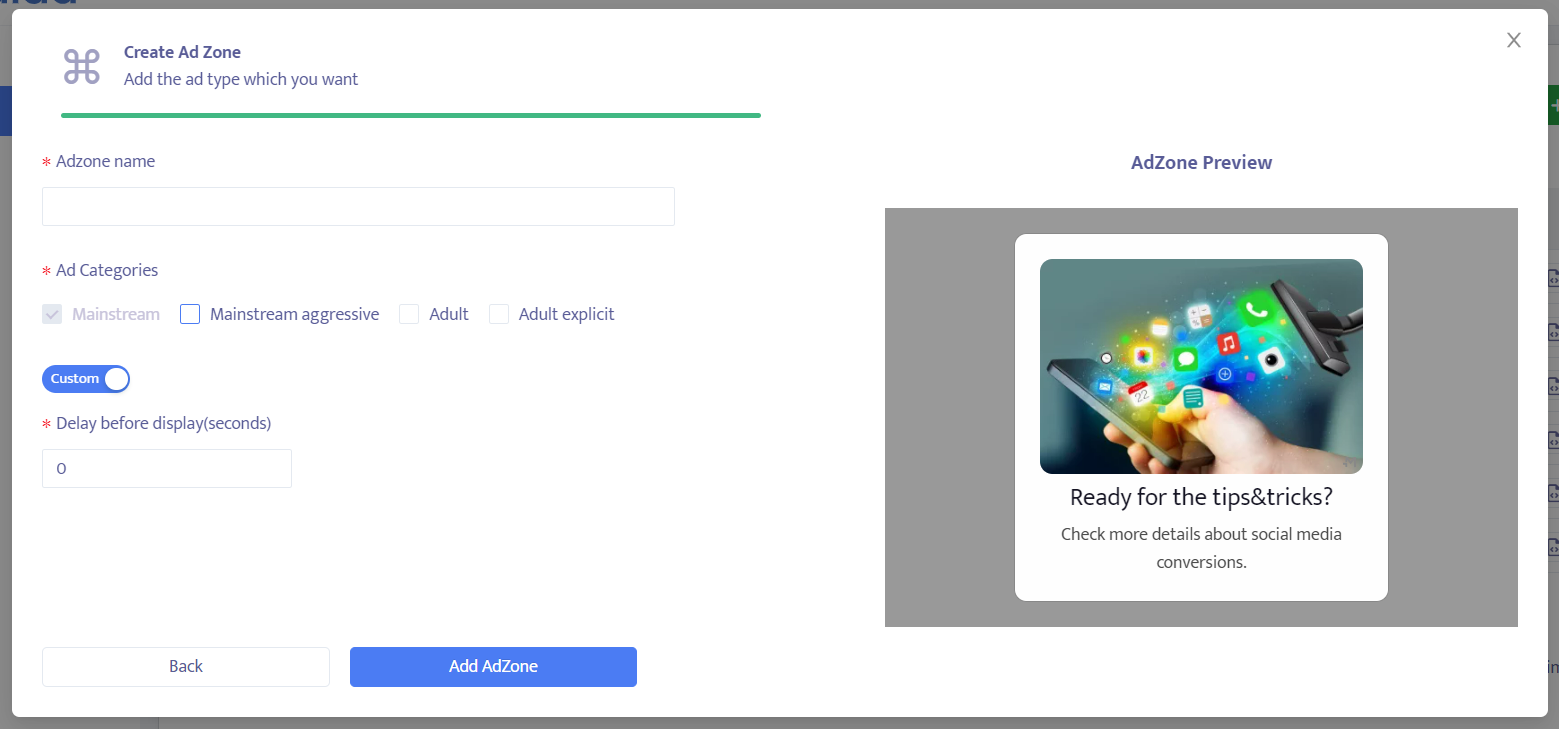
- The ad zone name; [You have no restrictions regarding the ad zone name, as this information is internal]
- Ad category: Mainstream, Mainstream Aggressive, Adult, Adult Explicit
- Delay before display(seconds)
Mondiad Popunder Ad Zone Configuration
Popunder ads are advertisements that open in a new browser window or tab behind the active browser window after a user interaction, such as a click. Because they appear in the background, they are less disruptive than pop-ups while still providing advertisers with strong visibility when users return to the newly opened window or tab.
When creating or editing a Mondiad popunder zone, you can customize how and when ads are displayed to your visitors. Configuring these settings correctly helps you balance user experience with revenue.
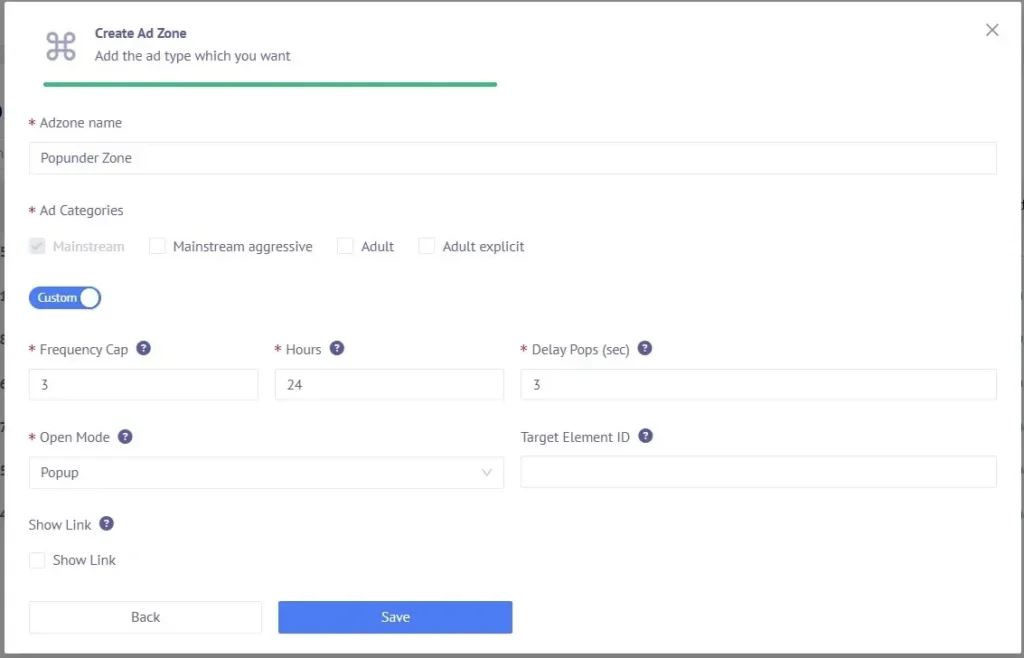
- The ad zone name; [You have no restrictions regarding the ad zone name, as this information is internal]
- Ad category: Mainstream, Mainstream Aggressive, Adult, Adult Explicit
- The Frequency Cap determines how often a visitor can see a popunder ad. Use this setting to prevent excessive ad displays and improve the browsing experience.
- The Target Element ID allows you to trigger a popunder only when a visitor interacts with a specific HTML element on your website(such as a button, image, or link).
Note: Leave this field empty if you want the popunder to trigger on the first eligible click anywhere on the page. - The Ad Trigger Delay specifies how long the script should wait before allowing a popunder to be displayed. The delay is measured in milliseconds (ms).
- The Open Mode let’s you choose how the advertisement should open when it is triggered.
Pop-up: The ad opens in a new browser window that appears in front of the current page, immediately drawing the visitor’s attention.
Tabunder: The ad opens in a new browser tab that remains in the background, allowing visitors to continue browsing your website uninterrupted. The ad becomes visible when they switch to the newly opened tab.
Note: The actual behavior of pop-up and tabunder ads may vary depending on the visitor’s browser, browser settings, and installed ad-blocking or popup-blocking extensions.
Next step:
