



Running campaigns with Mondiad is only half the job… the other half is understanding what users do after they land on your website. Without proper tracking, it’s difficult to identify which campaigns generate conversions, which pages perform best, and where users drop off in the funnel.
Google Tag Manager (GTM) provides a free and flexible way to collect this data, manage tracking scripts without constant developer involvement, and connect your Mondiad traffic with tools such as Google Analytics 4 (GA4) for deeper performance insights.
TL;DR
- Google Tag Manager (GTM) is a free tool for managing website tracking without constantly editing your site’s code.
- It helps Mondiad advertisers track user behavior, conversions, clicks, form submissions, and campaign performance.
- GTM is built around Tags (tracking scripts), Triggers (when tracking fires), and Variables (data used for tracking conditions).
- To set it up, you need a Google account, a GTM container, access to your website, and the Mondiad tracking script.
What is Google Tag Manager?
Google Tag Manager (GTM) is a free tool provided by Google that allows its users to track user behavior, events, and conversions by adding several tags (snippets of code) on a website or mobile app.
Google Tag Manager is best for anyone who needs easy control over tracking and understanding user behavior, conversions, and similar data, to further optimize their marketing efforts. By setting up tags and triggers correctly, marketers, advertisers, brands, or webmasters can effectively improve their results based on specific data.
How does it work?
Google Tag Manager (GTM) essentially acts as a middleman to manage your tags and send data to analytics tools.
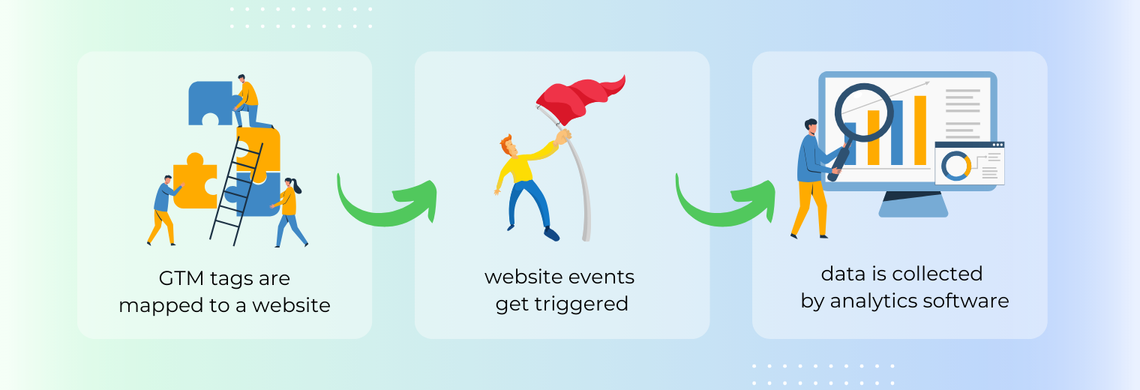
To track ad campaign data using Google Tag Manager (GTM), you’ll want to focus on setting up the right tags, triggers, and variables to capture relevant data from your campaigns. These elements will allow you to track when users complete specific actions (e.g., purchases, form submissions) as a result of clicking on your ad.
ℹ️ The GTM container is a small JavaScript code snippet that holds all the tags, triggers, and variables. Think of it as your central code for your website. You can update any of these items within the GTM interface, and changes will reflect on your site without needing to redeploy the GTM container.
ℹ️ Tags are the snippets of code added through GTM that send data to third-party tools like Google Analytics or other analytics platforms. Examples of tags include tracking scripts for analytics, heatmaps, or conversion tracking.
ℹ️ Triggers listen for specific actions or events on your website (like page views, button clicks, form submissions, etc) and fire the associated tag when those conditions are met.
ℹ️ Variables store data like page URLs and click IDs that GTM uses for tags and triggers. For example, if you want a tag to fire only on specific page URLs, you could use a variable to check for the URL condition.
Google Tag Manager setup prerequisites:
- A GTM account and container created for your website.
- Access to your website’s source code.
- A code snippet provided by Mondiad
- Basic understanding of how GTM, Google Analytics, or other analytics tools work. (don’t worry, just keep reading) 😉
The Google Tag Manager Setup Process
1. Create a GTM Account:
💡 To use Google Tag Manager, you must already have a Gmail account or any account for Google services.
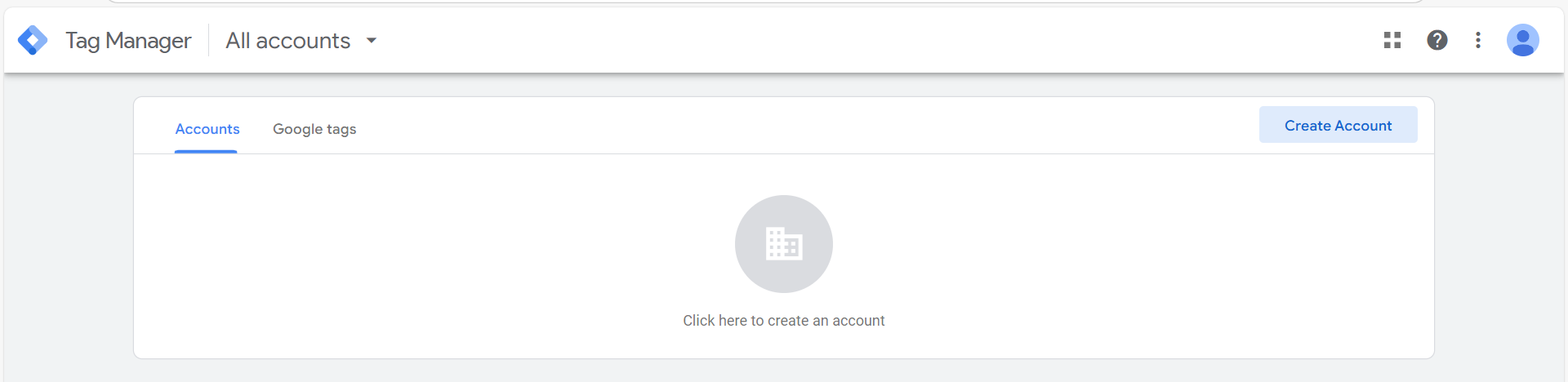
Head over to Google Tag Manager to set up an account.
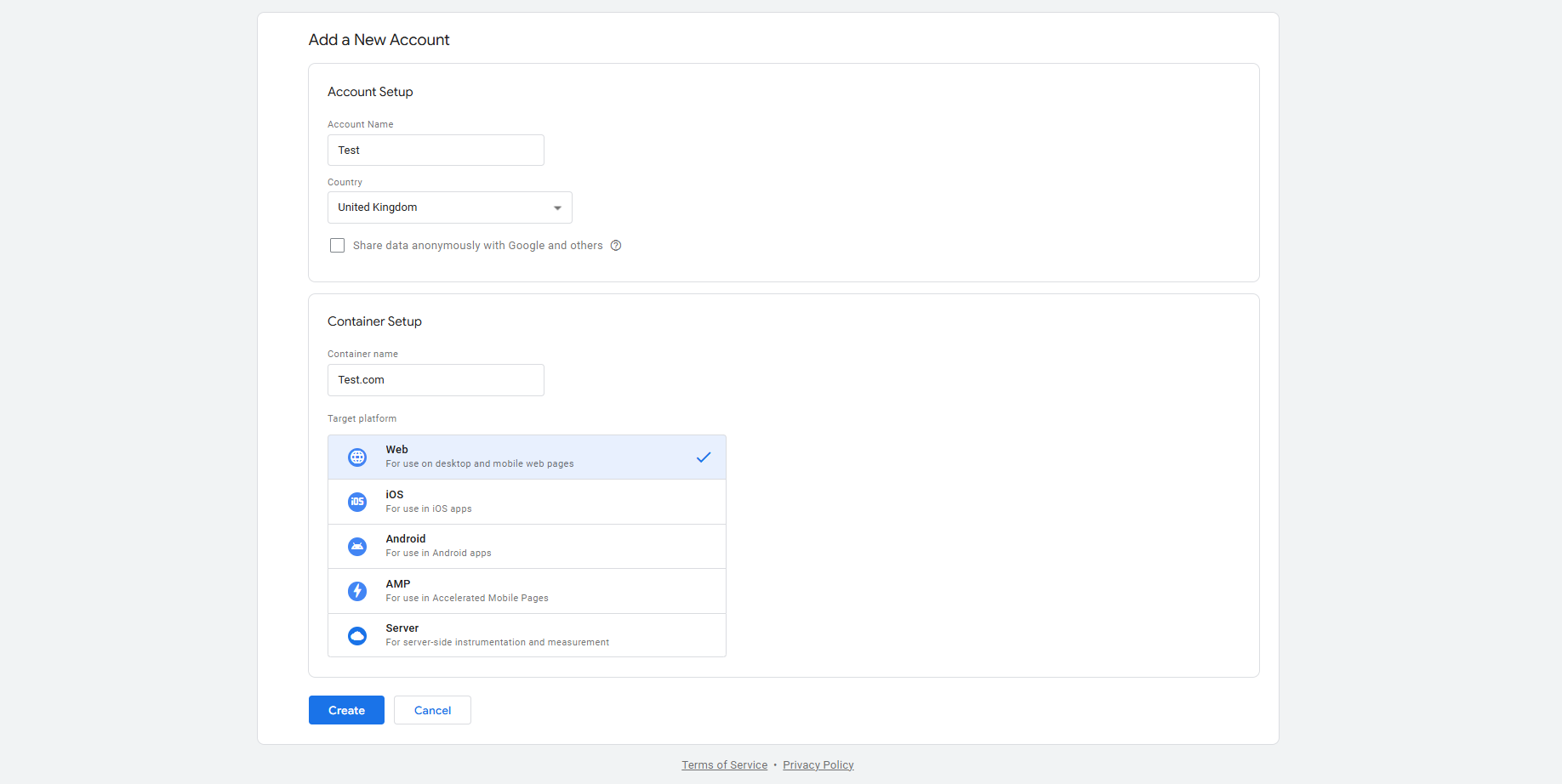
Click on “Create Account” and fill in your account name, container name (usually your website’s domain), and select “Web” as the target platform. When ready, click “Create” and agree to the terms of service.
2. Install the GTM container code:
After creating the container, you’ll receive a code snippet. Place the first part in the <head> section and the second part immediately after the opening <body> tag of your website’s HTML.
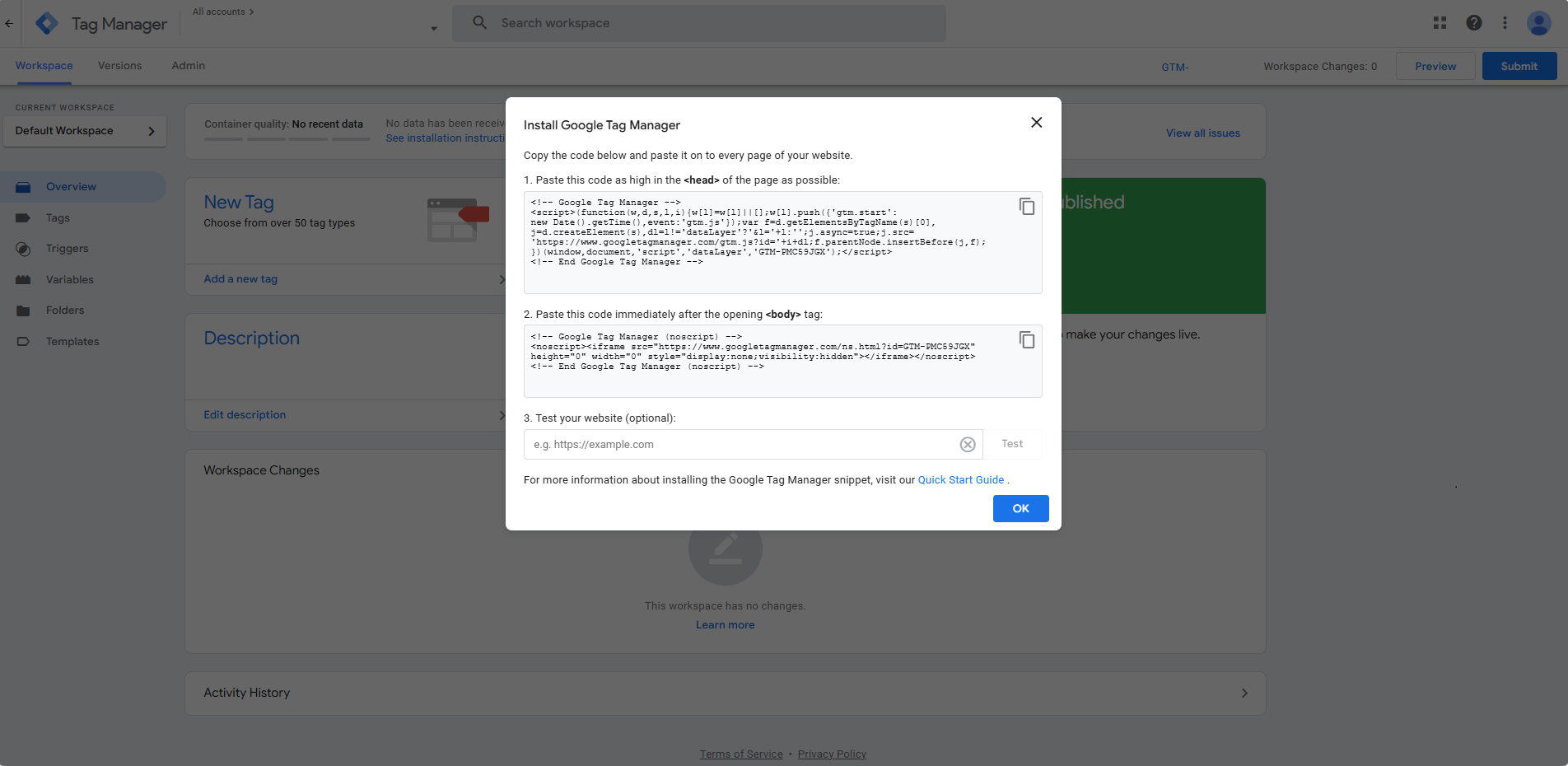
💡 There are several ways to install the code into your website, so we won’t go into detail but feel free to ask us for assistance, if needed.
To ensure your code is working properly, use the test feature to open your website in a new window, showing which tags are firing.
3. Publish the GTM Container:
When ready, click the Submit button in the GTM dashboard to publish your container.
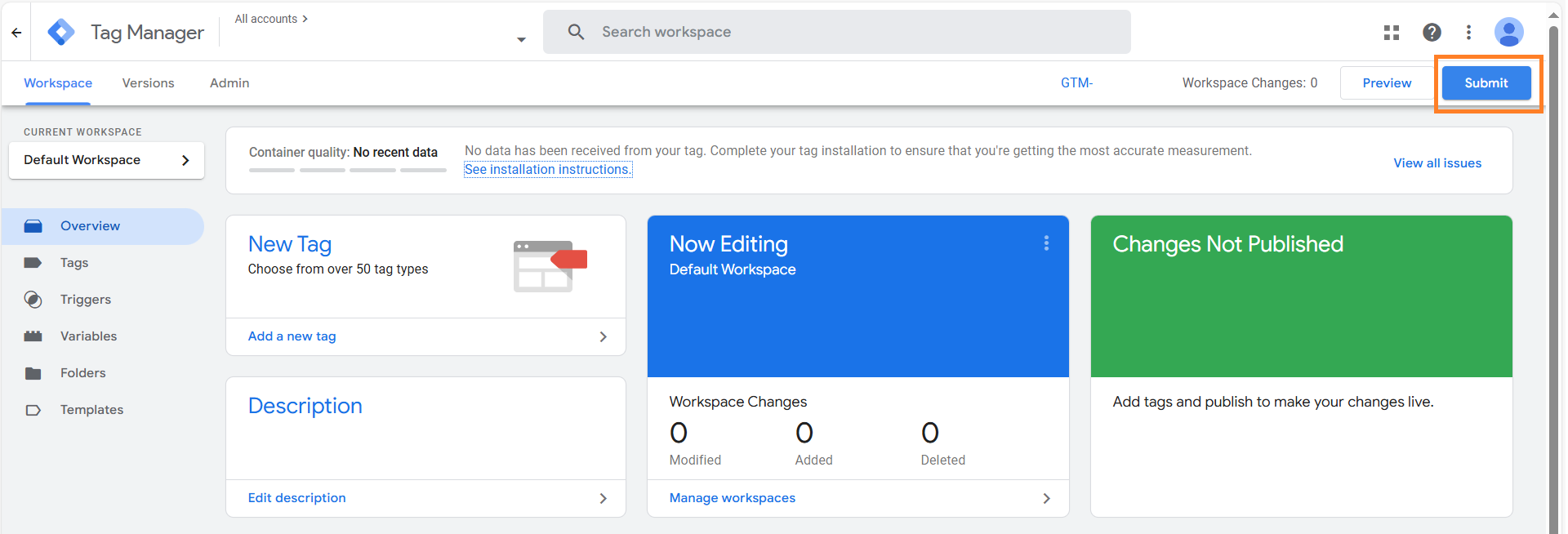
💡 You can also check if your GTM code is installed on your website by reloading the page, then right-clicking to view the page source. Simultaneously press CTRL + F to open the search bar where you can copy your code and check if it’s highlighted in your page HTML.

Now that you’ve got GTM installed on your page, you are ready to set up further tracking requests, including data coming from Mondiad.
4. Add a custom HTML tag:
In your GTM dashboard, head over to the “Tags” tab. Here, create a new tab and fill out the required fields.
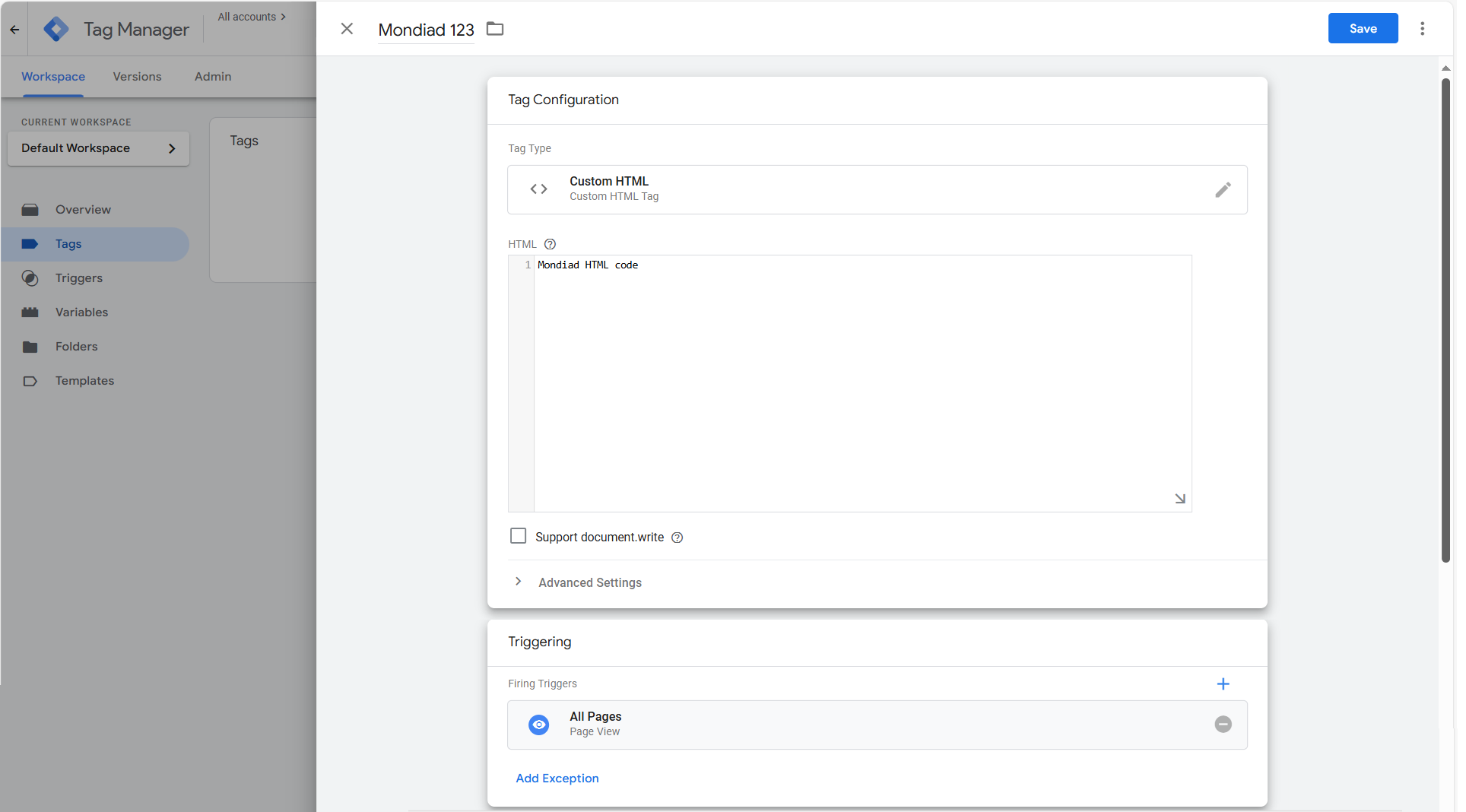
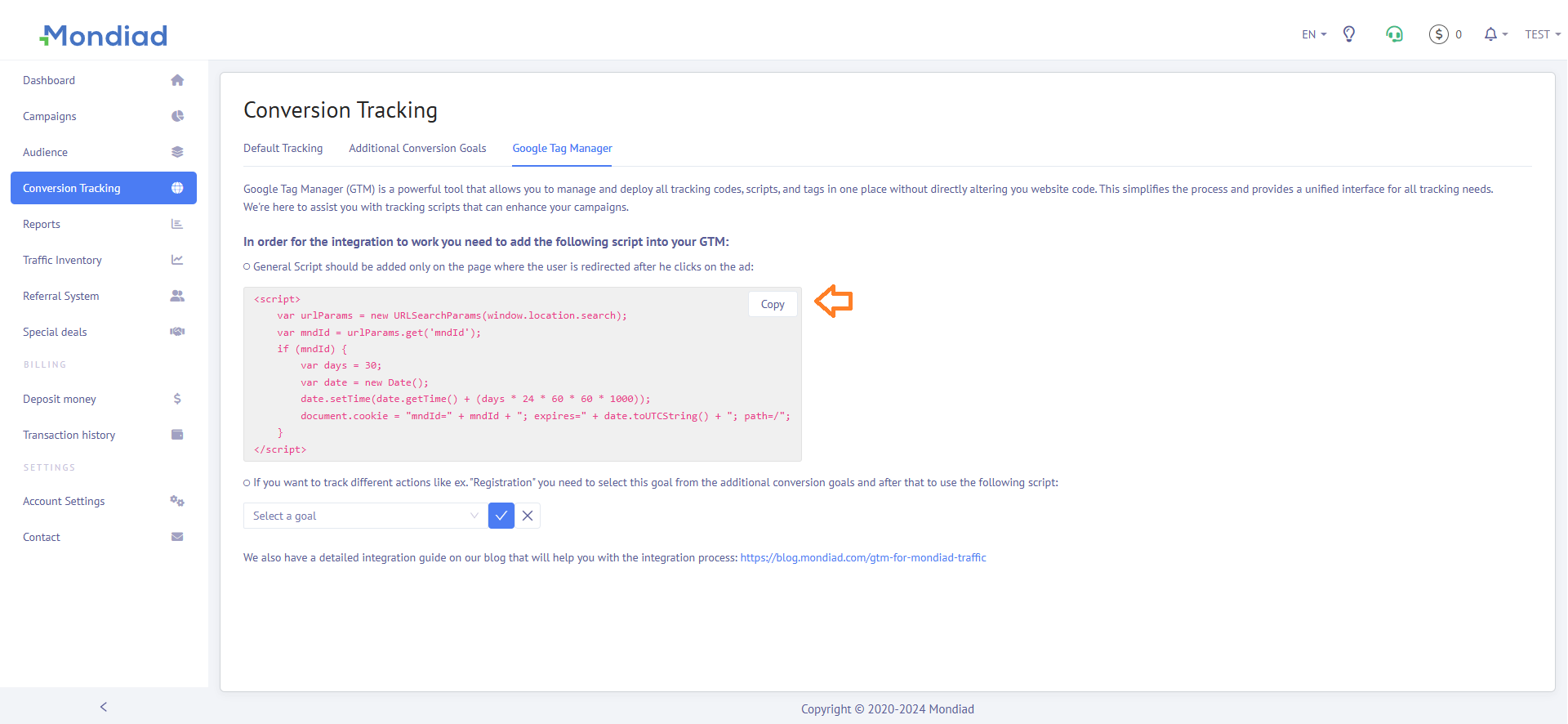
Name your tag something easy to identify, like Mondiad General Script, set the tag type to Custom HTML, and finally, copy and paste your Mondiad-generated script into the HTML box.
🔹 To grab your Mondiad script, log in to your advertiser account, head over to the Conversion tracking menu, and in the Google Tag Manager page you will see your code.
To finalize the setup, move on to the “Triggering” section, choose “All Pages” and then save the tag to publish your changes.
💡 Based on your goals, you can decide when the conversion tracking should be fired. Common triggers include:
- Pageview: For tracking visits to a specific page (like a “thank you” page).
- Click Trigger: For tracking clicks on buttons or links.
- Form Submission: For tracking form completions.
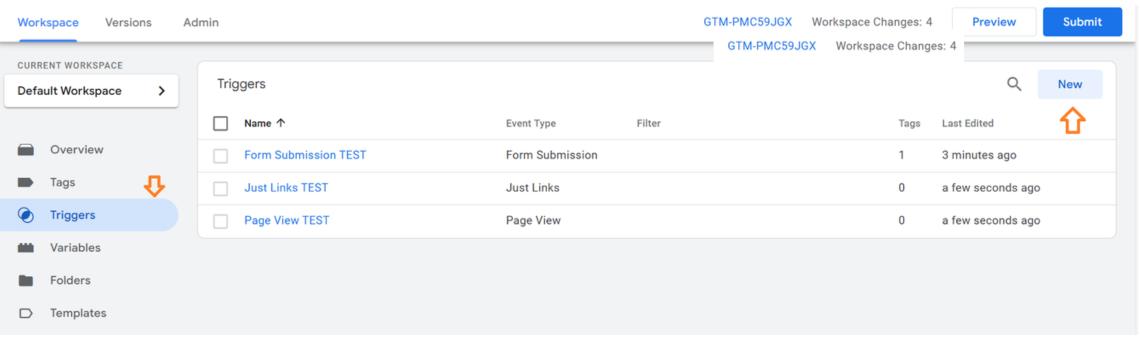
More info on triggers here.
Checking Your Data
If you want to understand how campaign traffic behaves on your site, you could integrate Google Tag Manager with Google Analytics.
💡 Note that you will need to create a GA4 property (if you don’t already have it) before starting up the integration.
Just create a GA4 event tag in GTM and map your events to be tracked alongside other metrics like bounce rate, session duration, and more.
In GTM, go to Tags -> New -> Google Analytics -> Google Analytics: GA4 Event. (The further setup is the same as the one above, however, it comes with more configuration options.)
Need Help Setting up GTM for Mondiad Conversion Tracking?

Contact the Mondiad team and we’ll help you install the container, configure triggers, connect GA4, and validate that your campaign data is tracking correctly end-to-end.
