



Once your ad zone is configured, the Mondiad platform will generate an ad code that you’ll need to insert into your website’s code.
Installing this code on your website allows ads to be displayed to your visitors and enables you to start monetizing your traffic.
Get your Mondiad ad code
- Head over to the website you desire to monetize with Mondiad ads.
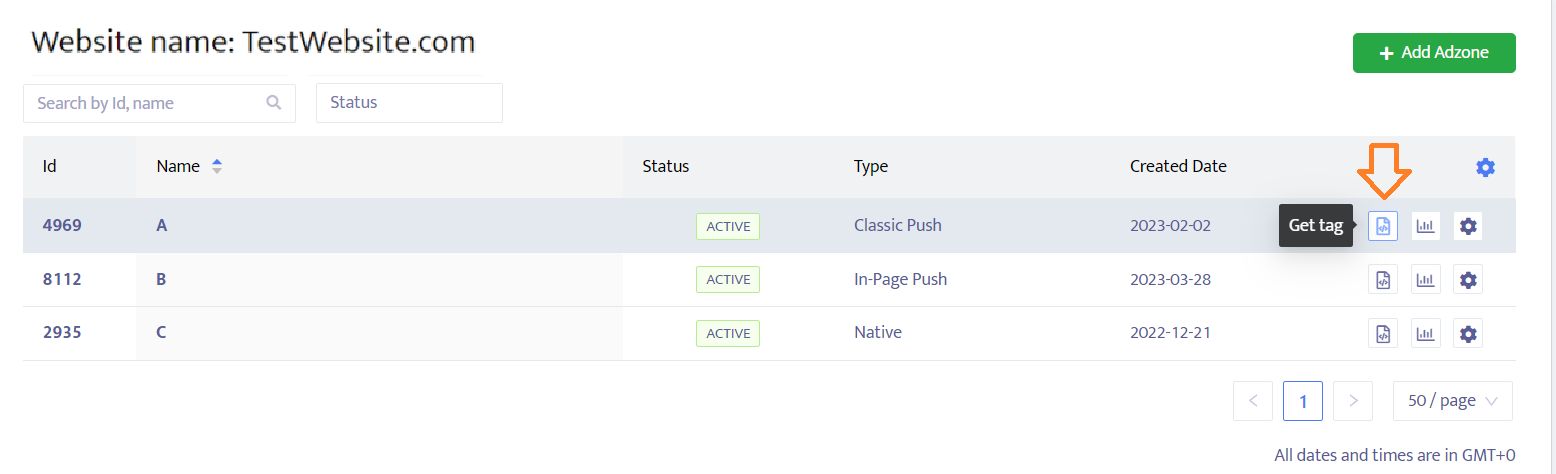
- Here, select the ad zone of choice and click on the “Get tag” button next to it.
- Copy the Mondiad generated ad code and paste it into your website’s code.
4. Paste the ad code into the HTML of the page where you want the ad to appear.
For a static HTML website:
<div class="ad-container">
    <!-- Paste your ad code here -->
</div>
For CMS platforms such as WordPress, you can:
- Add the code to a Custom HTML block.
- Insert it into a widget area.
- Use a code insertion plugin.
- Add it directly to your theme template if you’re comfortable editing theme files.
For websites built with frameworks like React, Vue, or Angular, place the ad code according to your framework’s recommendations for loading third-party JavaScript.
Mondiad ad code implementation tutorial for:
NOTE: Setup may slightly vary based on the ad format chosen. (see below)
In-page Push Mondiad ad code setup
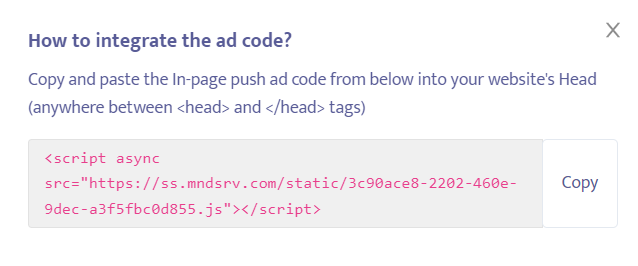
To implement the in-page push ad code, just copy the red script in the pop-up and paste it into your website’s Head, anywhere between <head> and </head> tags.
Classic Push Mondiad ad code setup
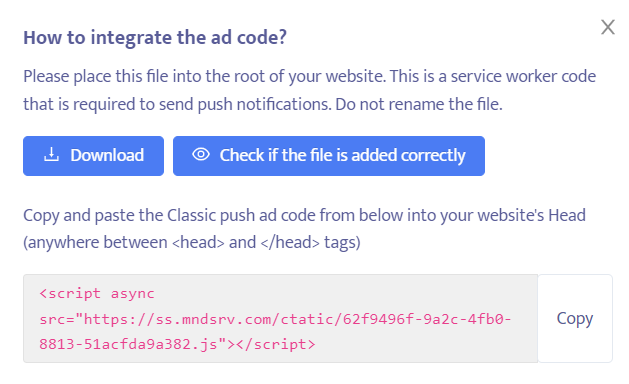
1. Download the following file and integrate it into the root of your website. Each publisher should know how to identify the root of its website but for any issues, we recommend you check with your website hosting.
To verify if the file has been implemented correctly, click on the “Check if the file is added correctly” button.
2. Once the file has been integrated, you need to copy the Classic Push ad code (the red script below) and paste it in the Head section of your website, anywhere between <head> and </head> tags).
Native Mondiad ad code setup
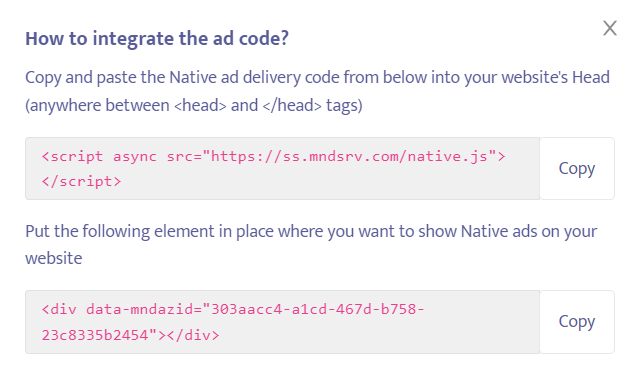
For Native ads, keep in mind that there are two codes:
The Native ad delivery code – which needs to be inserted in the Head section between <head> and </head> tags;
The Element code – which needs to be inserted in the place where you want to show the native ads on your website. It can be added anywhere in the website’s source.
Mondiad Banner ad code setup
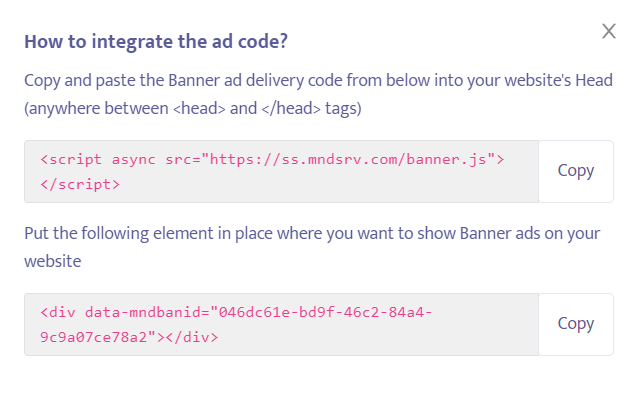
For Banner ads, keep in mind that there are two codes:
The Banner ad delivery code – which needs to be inserted in the Head section between <head> and </head> tags;
The Element code – which needs to be inserted in the place where you want to show banner ads on your website. It can be added anywhere in the website’s source.
Mondiad Dynamic ad code setup
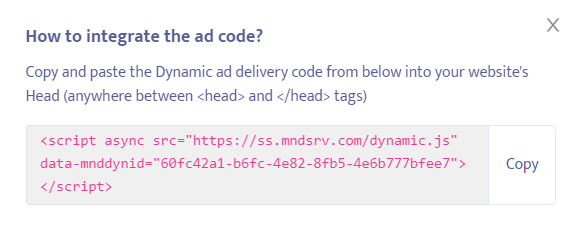
To implement the dynamic ad code, just copy the red script in the pop-up and paste it into your website’s Head, anywhere between <head> and </head> tags.
Mondiad Interstitial ad code setup
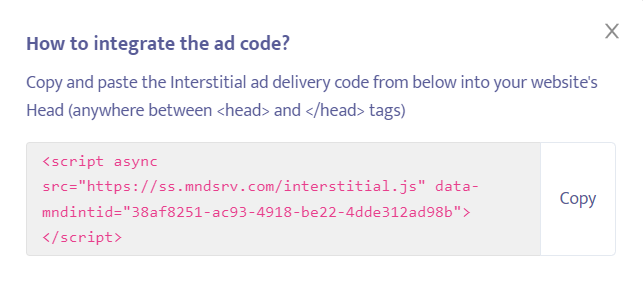
To implement the dynamic ad code, just copy the red script in the pop-up and paste it into your website’s Head, anywhere between <head> and </head> tags.
Mondiad Popunder ad code setup
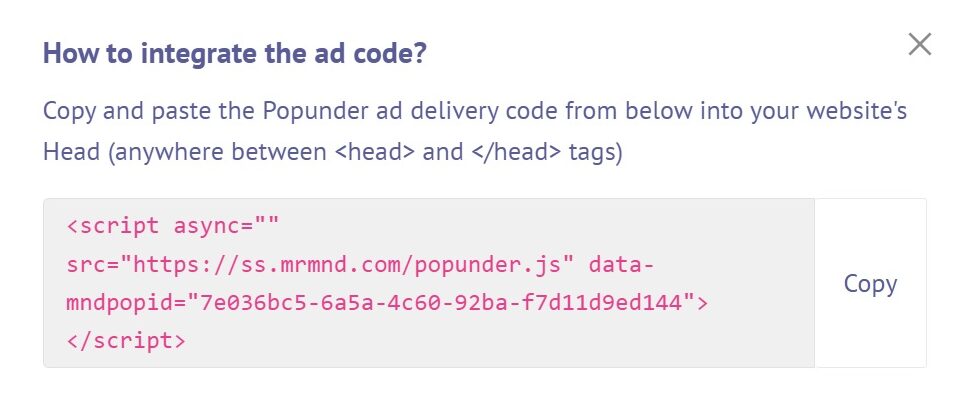
Copy and paste the Popunder ad delivery code from below into your website’s Head (anywhere between and tags).
Mondiad Demo Ad Mode 👁️
As a final step, you can now preview how ads are going to be displayed on your website.
![Mondiad demo mode [ad zone preview]](https://mondiad.com/blog/wp-content/uploads/2022/05/demo-mode-button.png)
To do so, click on the Demo mode button, as shown below, to open up a new tab with your website displaying dummy ads.
There you go! You’re all set.
If you need further assistance, don’t hesitate to contact us.
