
If you’ve ever pulled up your Mondiad dashboard, your affiliate network’s reporting, and a spreadsheet, and gotten three different conversion counts for the exact same campaign, you already know why ClickFlare ad tracking exists. ClickFlare is a performance ad tracker that sits between your traffic source and your offer, logging every click and conversion so you know exactly which campaigns, placements, and creatives are actually making you money.
Paired with Mondiad, a self-serve, multiformat ad network, ClickFlare gives advertisers a single, accurate source of truth for their campaign data instead of guessing based on whatever number each platform happens to show. In this guide, we’ll break down what ClickFlare does, how it works alongside Mondiad, and exactly how to set up tracking for your Mondiad campaigns step by step.
TL;DR
ClickFlare is an ad tracker built to centralize cost, click, and conversion data from Mondiad and every other traffic source you run. It uses server-side tracking and postbacks, so your data stays accurate even with cookie and privacy restrictions.A ready-made Mondiad tracking template maps out all the parameters and postback setup for you. Feeding clean conversion data back to Mondiad via postback can help lower your CPA over time.
What Is ClickFlare?
ClickFlare is an ad tracking and attribution platform built for affiliate marketers, media buyers, and agencies who run paid traffic across more than one network. Instead of logging into Mondiad, your other ad accounts, and your affiliate networks separately to piece together performance, ClickFlare pulls all of that into one dashboard, cost, clicks, conversions, and revenue included.
The platform is built around server-side tracking and Conversion API integrations, which means it doesn’t rely purely on browser cookies to attribute a sale back to the ad that generated it. For advertisers running Mondiad’s push, native, and banner formats across different devices and browsers, that matters, since client-side tracking alone increasingly misses conversions.
ClickFlare Ad Tracking Features
ClickFlare’s feature set is built around one goal: giving you a complete, accurate picture of campaign performance without manual spreadsheet work. Here’s what’s included:
| Feature | What It Does |
|---|---|
| Tracking & Attribution | Tracks every visitor step across simple or multi-step funnels and attributes each conversion back to the exact campaign, ad, or placement. |
| AI Copilot | Analyzes your campaign data to spot patterns, builds visual reports, and advises on strategy based on your top-performing ads. |
| Cross-Channel Reports | See cost, revenue, and ROI for Mondiad alongside every other traffic source you run, broken down by campaign or ad level. |
| Custom Conversions | Create and track up to 20 custom conversion events, like sign-ups, add-to-carts, or registrations, beyond the default sale event. |
| 200+ Integrations | Ready-made templates for ad networks, affiliate networks, and revenue sources, including a dedicated Mondiad template. |
| Multi-User Access | Give team members or clients controlled access to campaign data without sharing full account credentials. |
Why Media Buyers Choose ClickFlare Ad Tracking
A few things tend to come up most often when advertisers explain why they use ClickFlare:
- No coding required. Complex funnels, rotations, and event tracking are all set up through the interface, not custom scripts.
- Accurate attribution. Server-side tracking and Conversion API support mean conversions still get attributed correctly despite iOS privacy changes and cookie restrictions.
- Everything in one place. Advertisers running Mondiad alongside social or search traffic don’t need to log into five different dashboards to see how a campaign is performing.
- Fast, dedicated support. ClickFlare’s team helps with initial setup and ongoing tracking questions, which matters most in the first few campaigns.
How ClickFlare Ad Tracking Works with Mondiad
ClickFlare and Mondiad have partnered specifically to make tracking Mondiad campaigns straightforward. Because ClickFlare collects first-party data on the server side, your tracking stays accurate regardless of the visitor’s device, browser, or privacy settings, and through the ready-made Mondiad tracking template, that data can be sent back to Mondiad automatically via postback.
In practice, this means Mondiad’s optimization can work with real conversion data instead of estimated or incomplete signals, which is one of the more direct ways to lower your CPA over time.
How to Track Your Mondiad Campaigns With ClickFlare
Setting up tracking takes three steps.
Step 1: Add Mondiad as a Traffic Source
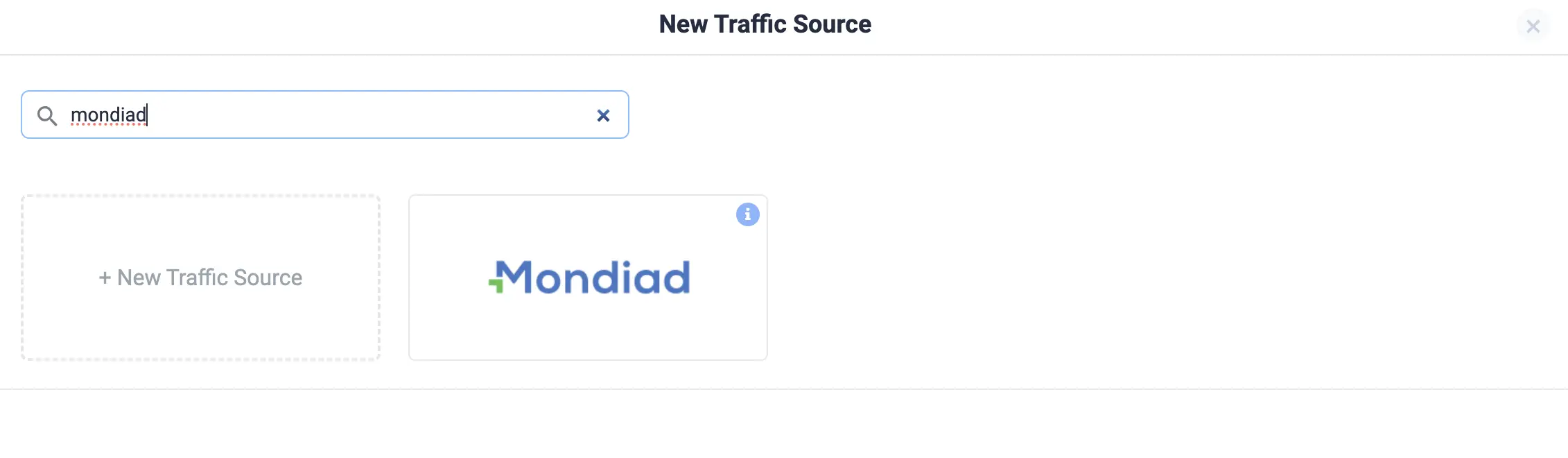
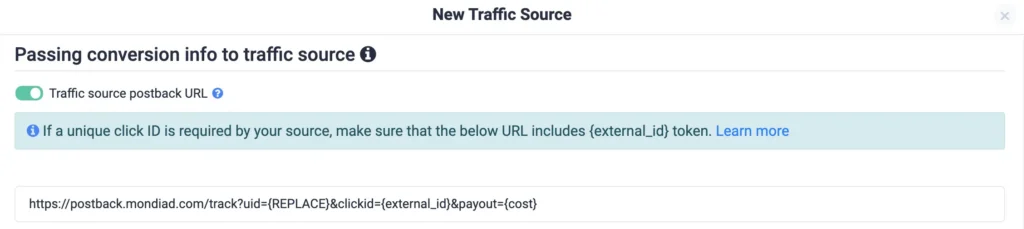
In ClickFlare, go to Traffic Sources, click +New, and search for the ready-made Mondiad template. Name the traffic source, select your currency, and the Parameters section will already be mapped out to match Mondiad’s requirements. If you want conversion data sent back to Mondiad, you can enable this under the postback URL option in the same setup.
Step 2: Create an Offer
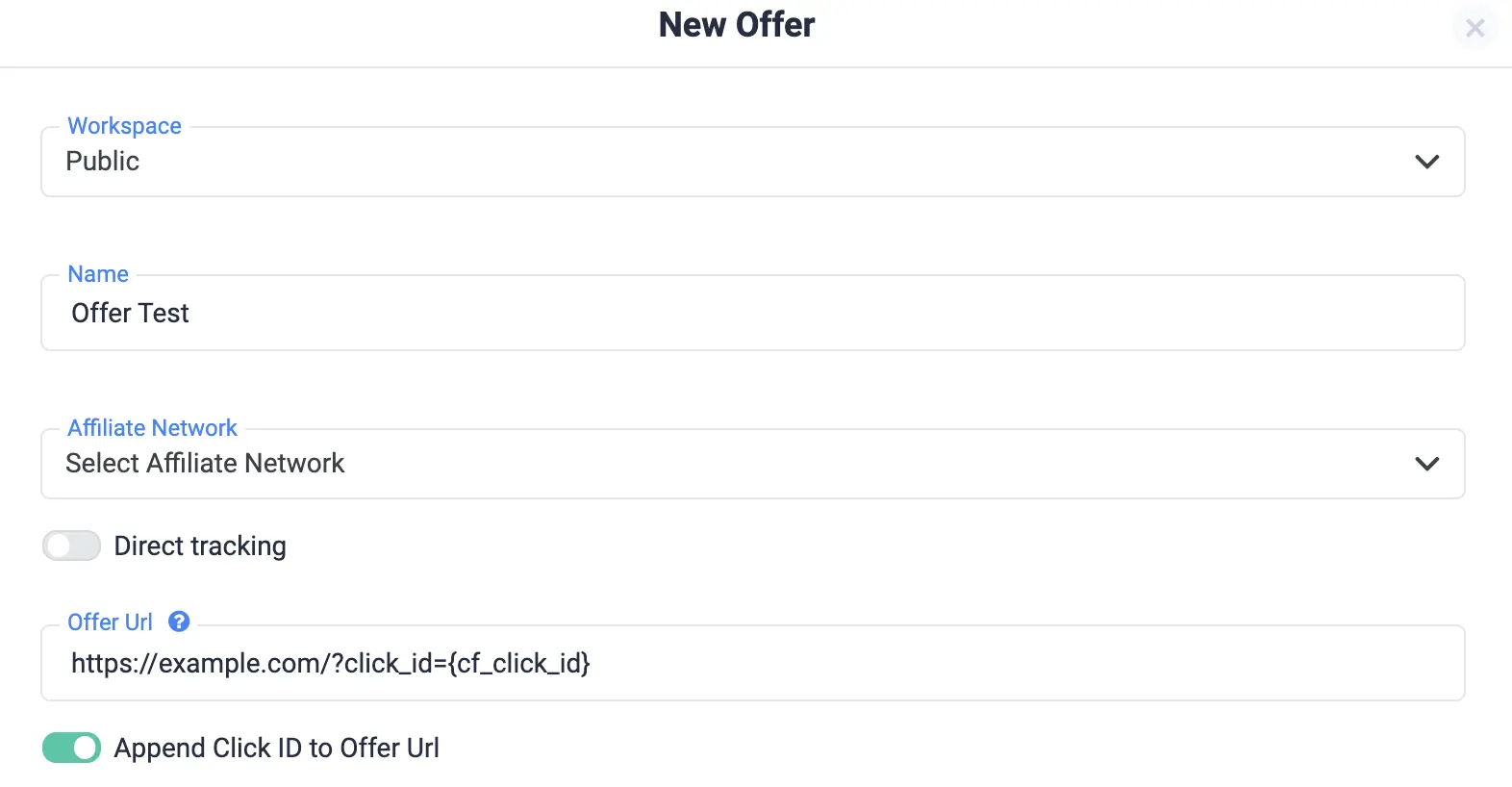
Under Offers, click +New to generate your offer tracking link. In ClickFlare, an offer is the page a visitor lands on to complete the final conversion. Add your offer URL, and optionally select an affiliate network template if you’re promoting an affiliate offer. Make sure your offer link always includes the ClickFlare click ID parameter, since tracking won’t work correctly without it.
Step 3: Create a Campaign
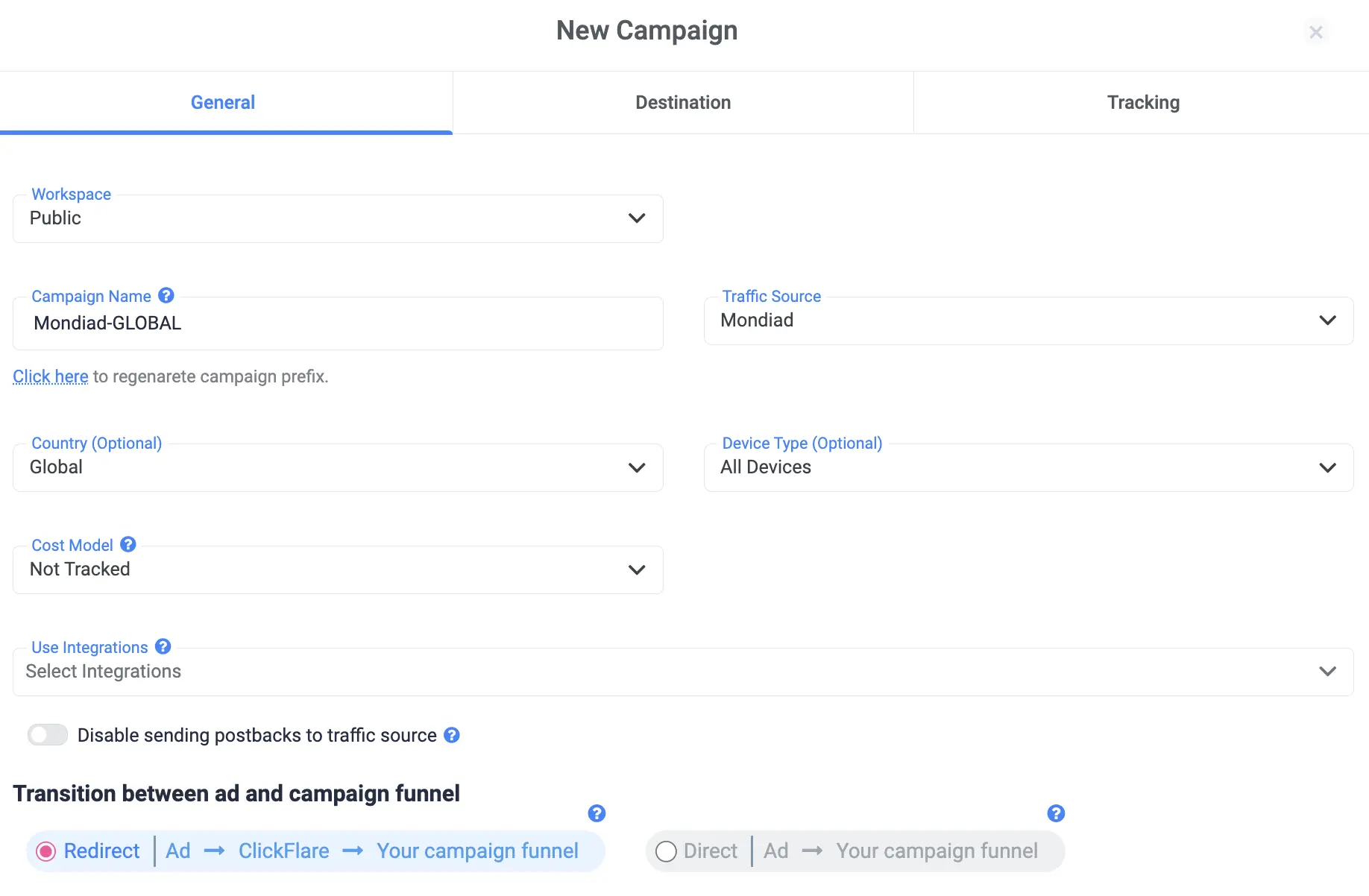
Under Campaigns, click +New, name your campaign, and select Mondiad as the traffic source. You can optionally narrow it down by country or device type. ClickFlare will pull cost data from Mondiad via postback automatically, no extra setup needed there.
You’ll also choose between a Redirect or Direct flow. With Redirect, the visitor passes briefly through a tracking domain before landing on your page, no code needed on your end. With Direct, the visitor goes straight to your page, but you’ll need to add a tracking snippet to it. Redirect is generally the easier setup and stays in line with Mondiad’s compliance requirements.
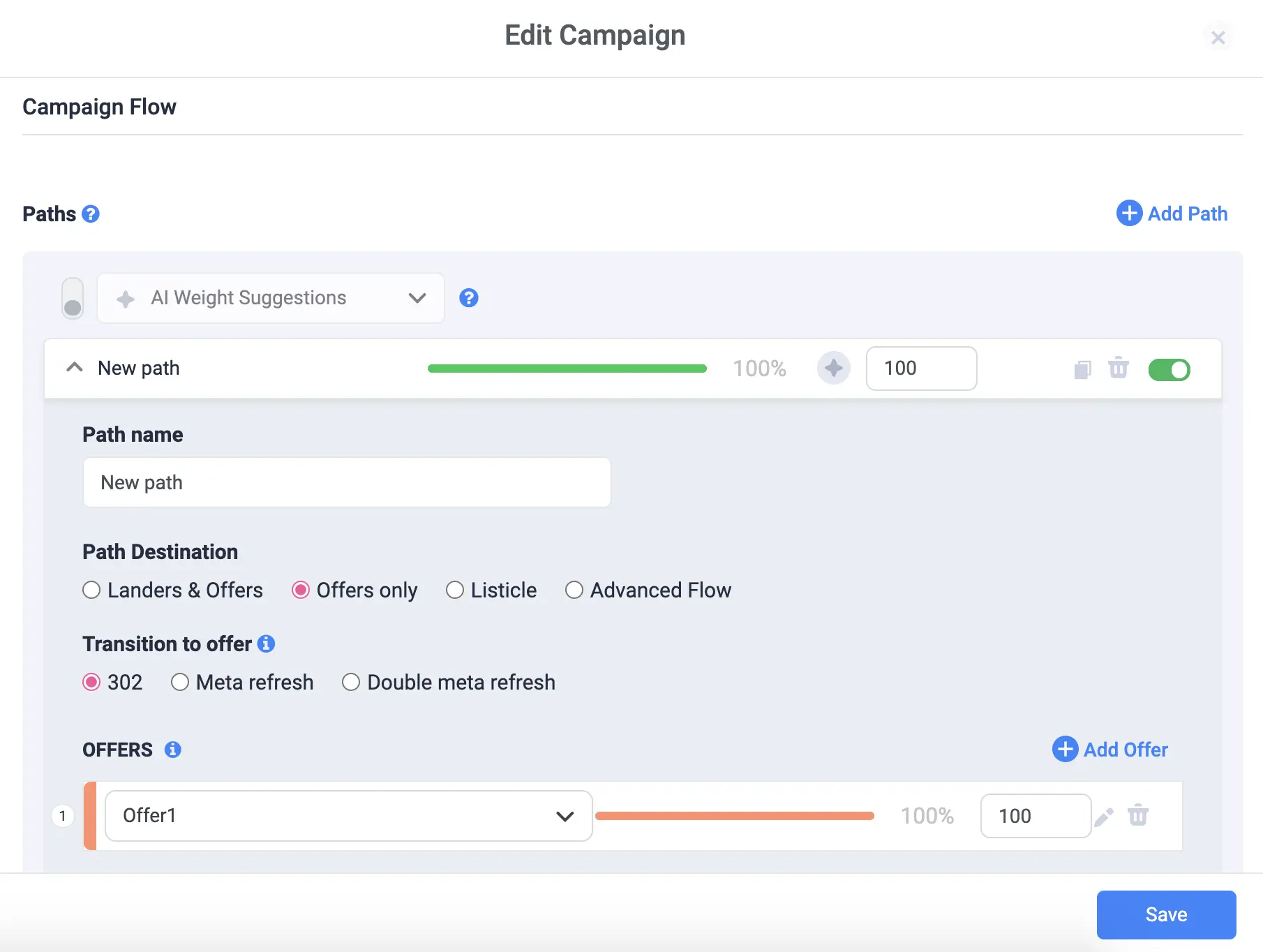
Once you set your campaign’s Destination and hit save, ClickFlare generates a Campaign Tracking URL. Copy that link and use it as your ad destination inside Mondiad.
How to Optimize Mondiad Campaigns with ClickFlare Ad Tracking
1. Track more than just the sale
Set up custom conversion events for sign-ups, form fills, or add-to-carts in addition to the final sale. This gives you visibility into where visitors are dropping off in the funnel, not just whether they converted.
2. Compare Mondiad against your other traffic
If you’re running traffic beyond Mondiad, use ClickFlare’s cross-channel reports to compare cost-per-conversion and ROI side by side. This makes it obvious, in minutes, where your next dollar of budget is best spent.
3. Let postback data guide your bids
Once conversion data is flowing back to Mondiad through the postback, review it alongside Mondiad’s own advanced targeting options to adjust bids toward the placements, GEOs, or devices producing your best-converting traffic.
4. Give data time before you act on it
Wait at least a few days after launch before making major changes. Enough conversions need to accumulate before a pattern in the data is actually reliable rather than noise.
5. Test with real numbers, not assumptions
Use ClickFlare to A/B test creatives, landing pages, or offers under the same campaign, and apply what wins to your next Mondiad push. This turns optimization into a repeatable process instead of a guess.
Common Mistakes to Avoid
- Skipping the click ID parameter. Without it in your offer link, ClickFlare can’t tie a conversion back to the original Mondiad click.
- Not enabling the postback. If Mondiad never receives your conversion data, its algorithm can’t optimize toward your actual results.
- Judging performance too early. A campaign with a handful of clicks doesn’t have enough data yet to draw real conclusions from.
- Ignoring device and GEO breakdowns. Aggregate numbers can hide a placement or country that’s quietly draining your budget.
How to Optimize Mondiad Campaigns with ClickFlare Ad Tracking
ClickFlare ad tracking gives Mondiad advertisers something a lot of media buyers are missing: one accurate, centralized view of what’s actually happening after the click. Between server-side tracking, the ready-made Mondiad template, and postback support, setup takes minutes, and the payoff is cleaner data feeding directly back into Mondiad’s optimization. If you’re currently relying on Mondiad’s dashboard alone, or juggling numbers across a few different tools, connecting ClickFlare is one of the more direct ways to tighten up your CPA and see where your budget is actually working.
Frequently Asked Questions
Is ClickFlare free to try?
Yes. ClickFlare offers a 14-day free trial with no credit card required, so you can test it against your current setup before committing.
Does ClickFlare work with Mondiad’s postback tracking?
Yes. ClickFlare includes a ready-made Mondiad traffic source template with the postback URL already set up to send conversion data back to Mondiad automatically.
Do I need coding skills to set up ClickFlare with Mondiad?
No. The Mondiad template, offer creation, and campaign setup are all handled through ClickFlare’s interface. Coding is only needed if you choose the Direct flow instead of Redirect.
Can ClickFlare track other traffic sources besides Mondiad?
Yes. ClickFlare supports 200+ integrations across ad networks, affiliate networks, and revenue sources, so you can track Mondiad alongside any other traffic you’re running from one dashboard.
What’s the difference between the Redirect and Direct tracking flow?
Redirect briefly routes the visitor through a tracking domain before your page, with no code required. Direct sends the visitor straight to your page but needs a tracking snippet installed on it.
| Ready to track your Mondiad campaigns accurately? Start your free ClickFlare trial and use the ready-made Mondiad template to get your postback set up in minutes. TRY CLICKFLARE FREE FOR 14 DAYS → |